Video: review and refine.
How to prepare a MYEQ v2 shot so it works the first time, how to review it before calling it good, and when to send it through MYEQ Refine.
Step by step
Set Start, End and ingredients
In «Image to video», «Start» is the first frame and «End» the last; both are optional. «Ingredients» carries characters, objects or style. Type @ in the scene to use your resources and the characters of the Production Bible.
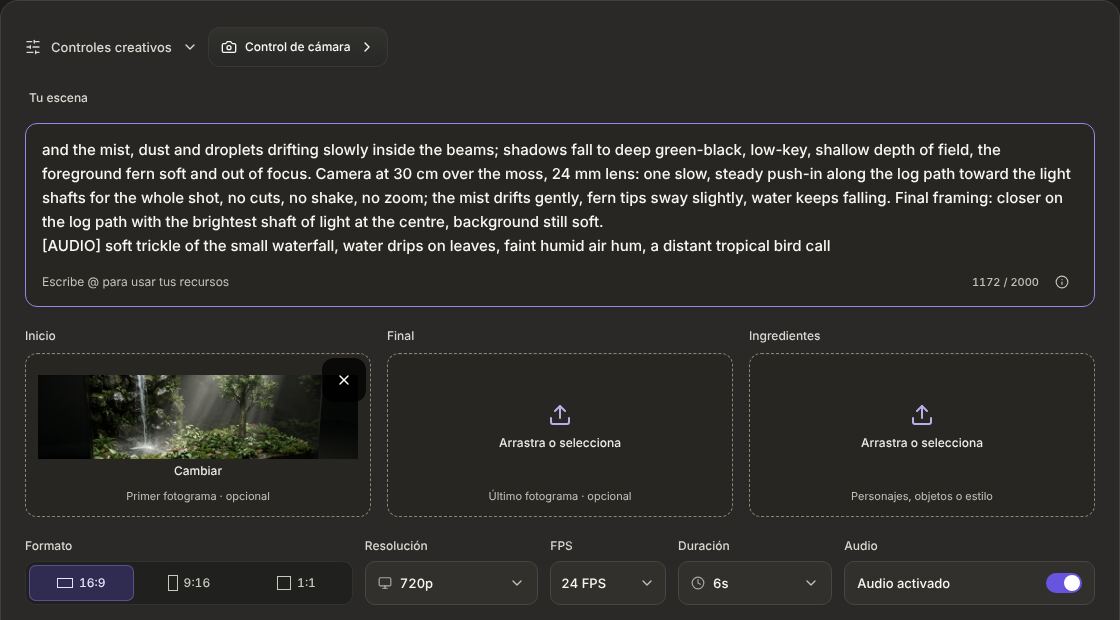
Keep to the reference limit
Count Start, End, waypoint photos, ingredients and @avatars together: a shot takes up to 4 identities in the foreground and 1 in the background. Ingredients from an earlier attempt stay on the shot: remove them before paying.
Write the scene in four blocks
[SCENE]: format, continuous shot, action, camera move and final framing. [AUDIO]: only the sounds that are heard. [DIALOGUE]: the exact words in quotes, or N/A. [NEGATIVE PROMPT]: what must not appear. MYEQ v2 generates voice and effects; music is added later in the Editor.
Fast action: short shots
A run, a chase or a jump works better as 2 or 3 shots of 1.5 to 4 s joined by «Hard cut:» inside one 6 s take, with the camera tracking the subject and «180-degree shutter, natural motion blur» in [SCENE]. Every new close-up of a face gets its own image.
Review the take
MYEQ.PRO checks every finished take once, at no cost: cuts, flicker, frozen or black frames, the face against the start image, and the sound. That check does not see grimaces lasting a few frames, hands or objects: review the take yourself every half second, with the faces up close. One deformed frame rejects the shot.
Refine once the take is approved
In «Delivery quality», choose the saved video and the output quality, then «Create refined copy». MYEQ Refine creates a new version in Resources and leaves the original untouched. You see the maximum price before you pay; if the copy costs less, the difference is refunded, and a copy that fails is refunded in full. More resolution does not guarantee more detail: judge the faces on the 1080 copy.
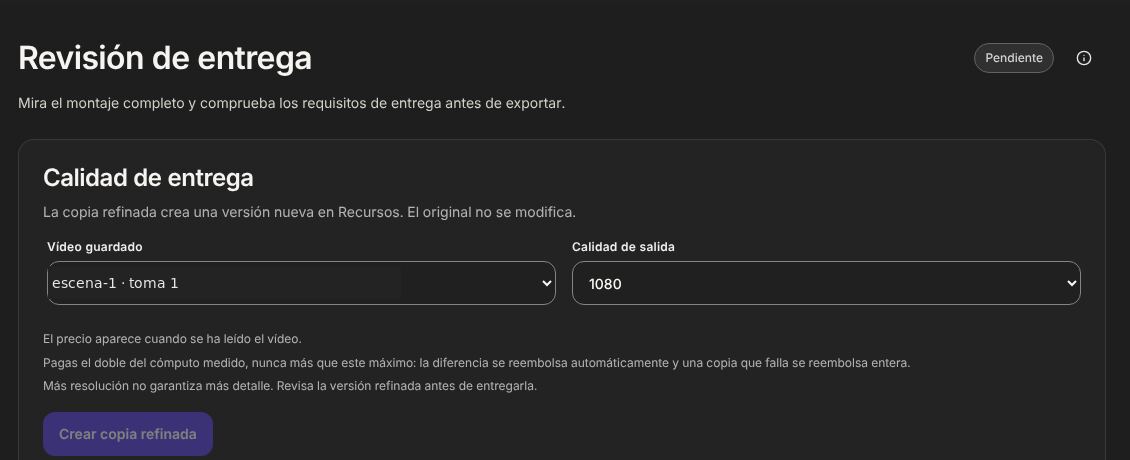
Real screenshots of the MYEQ.PRO web app in preproduction, 18 November 2026, with the interface in Spanish. The side menu, the balance and internal file names were cropped out.
What works. What fails.
Rules measured on 18 and 19 November 2026 on a 10 s chase produced through the web, as a customer would.
Do
- Approve the style with an image before paying for video.
- A face that matters: a medium shot or closer, in focus, checked up close before paying.
- Name the Production Bible character (@name) in every start image.
- For fast action, 2 or 3 shots of 1.5 to 4 s joined with «Hard cut:».
Avoid
- One long take for a chase: it comes out as a jog in place (9 % of the frame width per second, against about 90 % with cuts).
- Naming music in [AUDIO]: MYEQ v2 does not generate music.
- Paying with ingredients left from an earlier attempt.
- «High» when the image must keep its framing: it redraws the shot. Use «Balanced».
Today's limits
| Image to video | |
|---|---|
| Audio to video | |
| Video to video | |
| Formats | |
| References | 4 identities in the foreground and 1 in the background |
| MYEQ Refine |
The other guides
Try MYEQ v2 on your project
Create an account, approve the style with an image and generate only when the price fits.